 Rotimi Best
7e8bd3d718
Rotimi Best
7e8bd3d718
The bar was nested in an extra shrink-0 div together with the dock
sentinel. A sticky element is constrained to its containing block, and
that wrapper is only as tall as the bar plus a 1px sentinel, so the bar
had roughly 1px of travel. It could never float over the page content and
only ever appeared where it naturally sits, at the end of the page.

Render the bar and the sentinel as siblings so the containing block is
Page.Root and the bar has the full page to travel. Measured in headless
Chrome at scrollY=600 in a 713px viewport: wrapped bar bottom was 2484
(off screen), sibling bar bottom is 713, pinned to the viewport.

Also raise the bar from z-10 to z-50. The editor root is relative z-50,
so it painted over the bar on any settings page with an editor, such as
the course welcome email. Matching 50 rather than exceeding it wins the
tie on DOM order while keeping body-portaled dialogs and sheets above the
bar.

ref is now bound to the sticky element rather than the removed wrapper.
No dashboard caller binds ref today.
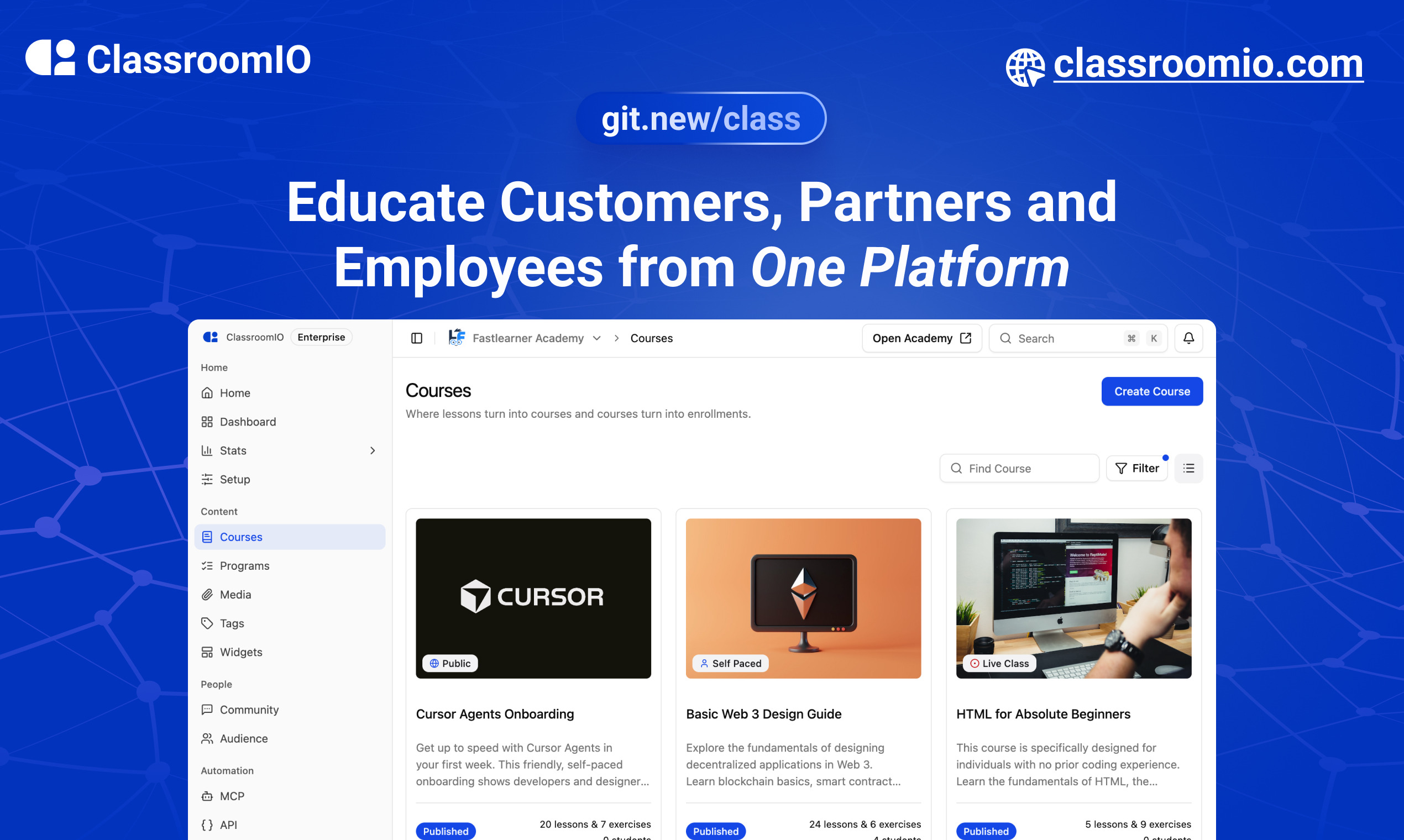
ClassroomIO.com
The Open Source Learning Management System for Companies
Website | Join Discord community
✨ About ClassroomIO.com
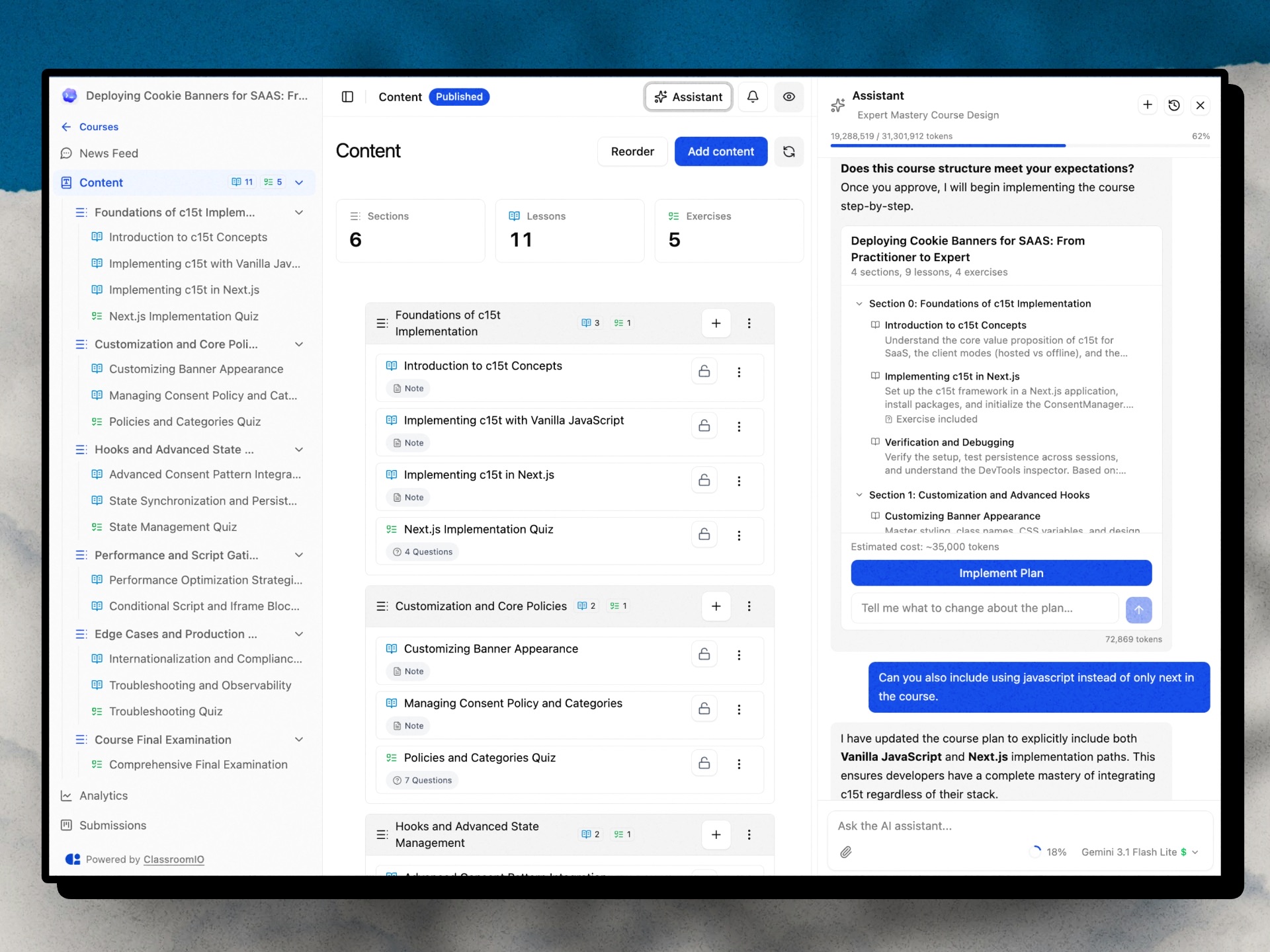
ClassroomIO is an open source LMS for companies. Run compliance/employee training, customer education, and partner certification cohorts — all from one platform. Self-host it on your own infrastructure or use the cloud version.
Who It's For
| Use Case | What You Get |
|---|---|
| Compliance Training | Deadline tracking, renewals & retake intervals, grace periods, waivers, certificates with custom IDs |
| Customer Education | Branded academy portal, cohorts (cohorts with goals), AI lesson tutor, multilingual content |
| Partner Training | Partner workspaces, branded certificates, custom domains, embeddable widgets, multilingual support |
Key Features
Course & Content
- Course management — unlimited courses, lessons, exercises, grading, and certificates
- Cohorts — group courses into cohorts with goals, team management, and progress tracking
- AI Course Builder — generate outlines, lesson content, and assignments (Gemini, GPT-4o, Claude)
- AI Lesson Tutor — in-lesson AI assistant that helps learners as they study
Compliance & Certification
- Compliance tracking — status, deadlines, grace periods, renewals, and waivers
- Certificates — issue branded certificates with custom IDs
Learner & Org Experience
- Multi-org & multi-teacher — invite teachers, assign courses, manage multiple organizations
- Student dashboard — learners access all courses, assignments, and progress in one place
- Multilingual — deliver content in 10+ languages
Integrations & Developer Tools
- REST API + Webhooks — enroll users, trigger automations, receive events (
certificate.issued,enrollment.completed, and more) - MCP server —
@classroomio/mcpon npm for AI-native integrations - Embeddable widget — embed your course catalog on any website
Platform
- Fully open source — self-host the entire stack on your own servers
For what's coming next, see the public roadmap.
Built With
Get a Demo
You can book a quick 15 min demo to see if ClassroomIO is a good fit for you

Getting Started
To get a local copy up and running, please follow these simple steps.
Prerequisites
Here is what you need to be able to run ClassroomIO.com
- Node.js (Version: >=20.19.3) — required
- pnpm (v10) — required; the package scripts call
pnpmdirectly, so npm/yarn are not substitutes - Docker — required; runs Postgres + Redis (no local install of those needed)
Project Structure
This repo is a monorepo that consists of these primary apps:
website: The landing page of ClassroomIO hosted hereapi: The api service that handles PDF, video processing, Emailing and Notifications.dashboard: The web application that runs the learning management system hosted here.docs: Official documentation of ClassroomIO hosted here
The repository also contains shared packages under packages/ (for example packages/db, packages/utils, and packages/ui).
Development
Local Setup
Before you start: make sure pnpm and Docker are installed (see Prerequisites). New to the project? Read
DEV_SETUP_NOTES.mdfirst — it's a full step-by-step walkthrough with a troubleshooting reference for the errors you're likely to hit.
-
Fork the repo, then clone it:
git clone https://github.com/classroomio/classroomio.git -
Go to project folder:
cd classroomio -
Set up Node (using
nvm):nvm useYou first might need to install the specific version and then use it:
nvm install && nvm useYou can install nvm from here.
-
Install dependencies:
pnpm i -
Set up your
.envfiles:Each app reads its own
.env. Inapps/api,apps/jobsandapps/dashboard, duplicate.env.exampleto.envand fill the values below (host ports). The secret values are placeholders — generate each one withopenssl rand -hex 32rather than copying the example text. The twoPRIVATE_SERVER_KEYvalues must match — they authenticate the dashboard's server-to-server calls to the API, so generate it once and paste the same value into both files.-
apps/api/.env:DATABASE_URL="postgresql://postgres:postgres@localhost:5432/classroomio" REDIS_URL="redis://localhost:6379" PUBLIC_SERVER_URL="http://localhost:3002" TRUSTED_ORIGINS="http://localhost:5173" # the dashboard dev origin BETTER_AUTH_SECRET="<generate-with-openssl-rand-hex-32>" PRIVATE_SERVER_KEY="<generate-with-openssl-rand-hex-32>" # generate once; use the SAME value in the dashboard DASHBOARD_ORIGIN="http://localhost:5173" # optional; used for invite/email links back to the dashboard -
apps/jobs/.env: The jobs service handles background tasks (emails, media processing, analytics rollups, etc.).Recommended setup (simplest):
cd apps/jobs ln -s ../../apps/api/.env .env -
apps/dashboard/.env:PUBLIC_SERVER_URL="http://localhost:3002" PRIVATE_SERVER_URL="http://localhost:3002" # used by the SSR auth proxy — required, or login returns "API upstream not configured" PRIVATE_SERVER_KEY="<generate-with-openssl-rand-hex-32>" # must match the API (paste the value generated above) PUBLIC_IS_SELFHOSTED=true -
Running the background workers? Also create
apps/jobs/.env(e.g.cp apps/api/.env apps/jobs/.env); it needsREDIS_URL. Thepackages/db/.envused by the DB scripts is set up in step 6. -
Optional for self-hosted Enterprise-only features (SSO, token-auth, no-tracking): set
LICENSE_KEYinapps/api/.env. -
Optional upload size limits: set matching
UPLOAD_MAX_*_MBvalues in bothapps/api/.envandapps/dashboard/.env(seeapps/api/.env.example). Defaults are 5 MB documents, 2 MB assignment files, 800 MB videos.
-
-
Start local infrastructure for API (Postgres + Redis) and seed the DB:
docker compose -f docker-compose.yaml up -d postgres redis cp packages/db/.env.example packages/db/.env # one-time (Windows: Copy-Item) pnpm --filter @cio/db db:setup:seed- Connect with
DATABASE_URL=postgresql://postgres:postgres@localhost:5432/classroomio - Connect with
REDIS_URL=redis://localhost:6379 db:setup:seedcreates the schema and seeds demo data once Postgres is up. The db scripts run with their own working directory, so they readDATABASE_URLfrompackages/db/.env(notapps/api/.env).
- Connect with
-
(Optional) Start MinIO locally for object storage (media/documents):
docker compose -f docker-compose.yaml --profile minio up -d minio minio-init- Console: http://localhost:9001 (user/pass default
minioadmin/minioadmin) - S3 endpoint: http://localhost:9000
- Buckets created by
minio-init:videos,documents,media - Add to
apps/api/.envwhen using MinIO locally:OBJECT_STORAGE_ENDPOINT=http://localhost:9000OBJECT_STORAGE_PUBLIC_ENDPOINT=http://localhost:9000OBJECT_STORAGE_ACCESS_KEY_ID=minioadminOBJECT_STORAGE_SECRET_ACCESS_KEY=minioadminOBJECT_STORAGE_FORCE_PATH_STYLE=trueOBJECT_STORAGE_MEDIA_PUBLIC_BASE_URL=http://localhost:9000/media
- Console: http://localhost:9001 (user/pass default
-
Run the local app services in separate terminals:
pnpm api:devpnpm dashboard:dev- If you see
Failed to resolve entry for package "@cio/...", the shared workspace packages haven't been built yet (theirdist/is missing). Build them once withpnpm build, then re-run the dev commands.
- If you see
-
Default local URLs:
api: http://localhost:3002dashboard: http://localhost:5173
-
Optional: run other apps:
- website:
pnpm website:dev - docs:
pnpm dev --filter=@cio/docs
-
Login into
dashboard:- Visit http://localhost:5173/login
- Enter email:
admin@test.com - Enter password:
123456
To learn more about how to login with a dummy account, go here.
Enabling the AI Course Assistant
The in-course AI chat (course authoring, plan generation, lesson edits) is disabled by default. Enable it by setting at least one provider API key in apps/api/.env (or the root .env for the Docker stack):
# Pick one or more — the dashboard model picker exposes Gemini 2.5 Flash and GPT-4o.
OPENAI_API_KEY=sk-...        # enables GPT-4o
GOOGLE_API_KEY=AIza...       # enables Gemini 2.5 Flash (default model in the picker)
ANTHROPIC_API_KEY=sk-ant-... # supported in code; not currently in the picker UI
Notes:
- The
GET /agent/statusendpoint flips toenabled: trueas soon as any of those keys is set, which is what the dashboard checks before showing the AI button on a course. - Each chat request sends the user-selected
model(persisted inlocalStorageasclassroomio-ai-chat-model). The API resolves the provider for that model (packages/utils/src/agent-models) and returns 503AI_NOT_CONFIGUREDif that provider's key is missing. - Optional Tinybird observability: set
TINYBIRD_TOKEN(and optionallyTINYBIRD_BASE_URL) inapps/api/.env. Events are silently skipped when the token is absent. - More detail on architecture, tools, and routes lives in
prd/ai-course-assistant [DONE]/README.md.
Docker Compose (Full Stack)
cp .env.example .env   # copy env template, edit for your domain
./run-docker-full-stack.sh
The script reads root .env via docker compose --env-file .env and auto-generates a secure PRIVATE_SERVER_KEY (and BETTER_AUTH_SECRET) when missing.
See .env.example for the full list of environment variables with required/optional grouping, and docker/docs/SELF_HOST.md for the complete Docker self-hosting guide. To raise upload caps (documents, videos, assignment files), set the UPLOAD_MAX_*_MB vars in .env — see the docs.
Publishing
When cutting releases for hosted assets or the npm MCP package, run:
- Storybook —
pnpm --filter @cio/storybook storybook:publish - Course widget embed —
pnpm --filter @cio/embeds embeds:publish - Question type picker —
pnpm --filter @cio/embeds embeds:publish(same script builds and uploads both embeds) - MCP (
@classroomio/mcp) — bump the version inpackages/mcp/package.json, thenpnpm mcp:buildandpnpm --filter @classroomio/mcp publish